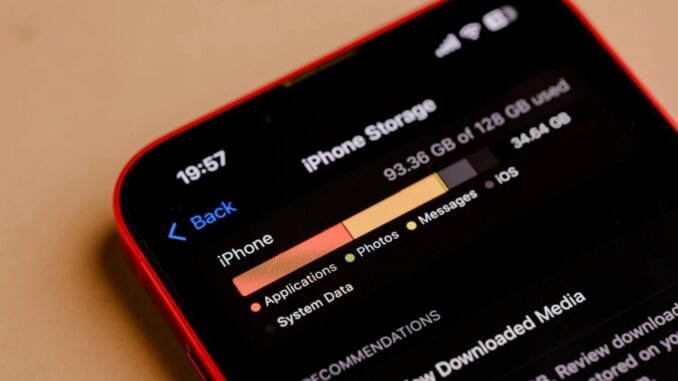
You’re probably not aware of how much storage your apps, photos, and other docs are eating up on your phone until you hit a wall when trying to update iOS or download new apps. Every photo-heavy text or Spotify podcast download puts you closer to the limit, perhaps inspiring you to see how much it would cost to buy a new phone with more storage. Before you empty your bank account for more GBs, however, we have some advice for cleaning up your phone without losing access to the apps and services you use most.
Check Your Total Usage
First, assess how much space you have. Go to Settings > General > [Device] Storage. At the top, you’ll see a color-coded bar chart showing how much space each app category takes up on your device. This can include apps, messages, and photos. Note that a small portion of your device’s memory will always be used up by the operating system.
You don’t need to understand these numbers deeply. To update iOS, you’ll generally want to have up to 10GB of free space. If you simply want to have enough room to take new photos and install new apps, give yourself at least 2GB of free space.
Go to Settings > General, and find the apps that use the most data. If your streaming apps, for instance, occupy a couple of gigs and you don’t have anything downloaded on those services, uninstall them and reinstall them. This will clear out the cache.
Leave a Reply